Remote Work Security in 2026: What You Need to Know
Essential security practices for remote workers in the modern workplace.
2026-06-15
Updated 2026-07-13
Remote Work Security in 2026: What You Need to Know
Remote work is here to stay, and security is more important than ever. Here's what every remote worker should know in 2026.
The Remote Work Security Landscape
Remote work introduced new security challenges:
- Unsecured home networks
- Screen sharing in public spaces
- Shared devices and monitors
- Video call recordings with sensitive content
Essential Security Practices
1. Secure Your Network
- Use a VPN for all work activities
- Enable WPA3 encryption on home WiFi
- Disable file sharing on your devices
- Use a firewall
2. Screen Sharing Safety
- Only share what's necessary
- Use application-specific sharing when available
- Be aware of notifications and popups
- Have a kill-switch plan
3. Device Security
- Keep software updated
- Use strong passwords and 2FA
- Encrypt your hard drive
- Use privacy-focused browser extensions
Privacy Tools Integration
Tools like BlurMe complement your security strategy by:
- Preventing accidental data exposure
- Giving you granular control
- Working locally without external services
- Requiring no complex setup
Remote Work Security Starts Before The Call Begins
Most remote-work security advice focuses on passwords, VPNs, and device hygiene. Those still matter, but screen sharing adds a more ordinary risk: exposing information to the wrong audience during a normal meeting. That can happen even when the network is secure and every account has two-factor authentication enabled.
Treat every external screen share as a temporary public surface. Ask three questions before you start:
- What does the viewer need to see?
- What else is visible around it?
- What could appear after sharing starts?
The third question is the one people skip. Notifications, tab previews, AI sidebars, and chat messages can appear after the first scan. That is why a remote-work security routine should combine preparation with live controls.
Security Checklist For Remote Demos
Use this lightweight flow before client calls, support calls, investor demos, and recorded tutorials:
- Use a demo account or scrubbed workspace whenever possible
- Share one window instead of the full screen when the meeting tool supports it
- Hide tab titles before switching between browser tabs
- Blur customer tables, internal dashboards, API keys, and account details
- Hide ChatGPT history if you use AI during the call
- Blur WhatsApp Web or chat apps if they remain open
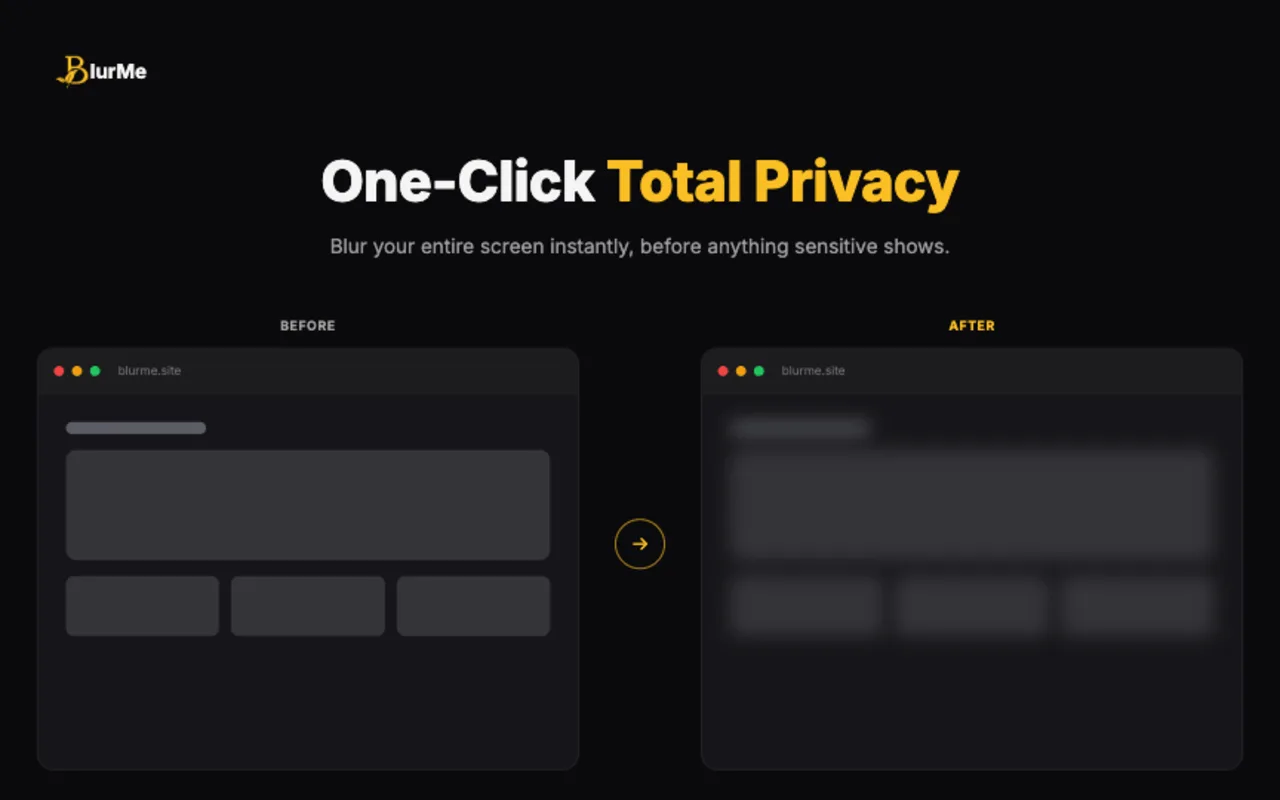
- Keep a fast fallback, such as full-screen blur, for unexpected interruptions
This turns screen privacy from a one-time setup into a repeatable operating habit.
How BlurMe Fits Into A Remote Security Stack
BlurMe does not replace password managers, endpoint security, encrypted messaging, or access controls. It covers a narrower but common gap: what is visible on screen while work is happening. That makes it useful for remote teams that already have security basics in place but still rely on live demos, async recordings, and customer-facing calls.
For the most common remote-work exposure points, use how to blur sensitive information while screen sharing as the main workflow, then add hide browser tabs during meetings and hide ChatGPT sidebar history during screen recording for browser-specific risks.
FAQ
Is screen sharing a security issue or just a privacy issue?
It is both. A visible customer name, private chat, internal dashboard, or access token can create privacy, trust, contractual, and security problems depending on what was exposed and who saw it.
What is the safest way to share a screen remotely?
Share the smallest possible surface, use demo data, hide surrounding browser UI, blur sensitive areas, mute notifications, and do a final scan before clicking Share.
Should remote teams create a screen-sharing policy?
Yes, especially if they run sales demos, support calls, user interviews, or training sessions. A simple checklist is easier to enforce than vague advice to be careful.
Looking Forward
As threats evolve, security practices must too. The combination of good habits and smart tools is the key to staying safe.
Related BlurMe Guides
For the screen-sharing part of remote work security, start with screen sharing privacy checklist before client demos, then use how to blur sensitive information while screen sharing, hide browser tabs during meetings, hide ChatGPT sidebar history during screen recording, and blur WhatsApp Web chats before screen sharing for specific meeting and recording scenarios.
Sources
- CISA, Guidance for Securing Video Conferencing, https://www.cisa.gov/sites/default/files/publications/CISA_Guidance_for_Securing_Video_Conferencing_S508C.pdf
- Google Chrome Help, Install and manage extensions, https://support.google.com/chrome/answer/2664769?hl=en