How to Blur Sensitive Information While Screen Sharing
45% of people don't realize how much screen sharing exposes. Here's how to blur tabs, chats, and dashboards before your next call — manually or in one click.
2026-07-13
How to Blur Sensitive Information While Screen Sharing
Screen sharing feels routine — until the wrong tab is open. Video-conferencing security guidance from CISA treats meeting privacy settings, access control, and screen-sharing discipline as part of secure remote work. This guide covers what typically leaks, why closing a few tabs isn't a real fix, and how to blur sensitive information in real time — whether you're on a sales call, a client demo, or a recorded walkthrough.
Key Takeaways
- Screen-share leaks are usually workflow failures: tabs, chat previews, dashboards, and credential fields stay visible around the thing you meant to present.
- Tabs, chat previews, dashboards, and credential fields are the most common things left visible during a share.
- Closing tabs manually doesn't scale — it only protects what you remembered to close.
- Real-time blurring (Element, Area, Full Screen, or Tab Privacy) hides sensitive content without ending the call or re-recording anything.
Why Does Screen Sharing Leak Private Information So Easily?
Screen sharing leaks private information because meetings move faster than preparation. Most of the risk is not malicious. It's ordinary human error: the presenter is focused on explaining the work, while tabs, sidebars, notifications, and dashboards stay visible around it. The pattern behind most screen-share leaks isn't recklessness — it's timing. A notification lands mid-sentence, a tab gets clicked out of habit, a dashboard with real customer numbers is still open from an hour ago. None of it happens because someone forgot to care about privacy. It happens because nobody scans their full screen in the ten seconds before hitting "Share."
What Actually Gets Exposed When You Share Your Screen?
The most commonly exposed items during a screen share are browser tabs, chat previews, dashboards with live data, and credential or login fields left open in another window. A single Slack notification with a client's name in it can undo an otherwise careful presentation.
Recorded sessions raise the stakes further because whatever is visible during the share can sit in a recording indefinitely. A small mistake during a live call can become a persistent artifact if the meeting is saved or forwarded.
Do Manual Fixes Like Closing Tabs Actually Work?
Closing tabs and cropping video only protects what you remember to close. Manual prep works right up until something unplanned happens — a Slack DM, a calendar popup, a tab you opened for "just a second."
Selective window sharing (sharing one app instead of the full screen) helps, but it doesn't solve everything. Notifications from other apps can still surface over a shared window, and switching tabs mid-share instantly reveals whatever else is open. Manual habits are useful as a first layer. They're not a substitute for something that catches what you miss.
How Do You Blur Sensitive Information in Real Time?
Real-time blurring solves the "what did I forget to close" problem by hiding sensitive content as it appears, not just what you remember to prepare beforehand. This is the gap BlurMe is built to close. Building this out, the recurring theme in early user feedback wasn't "I need to hide one thing." It was "I keep forgetting what's on my screen until it's too late." That's a workflow problem, not a discipline problem — which is why blurring in real time, rather than prepping beforehand, is the more reliable fix.
BlurMe runs entirely on-device — nothing you blur is uploaded anywhere — and needs no account to use. Four modes cover most screen-share scenarios:
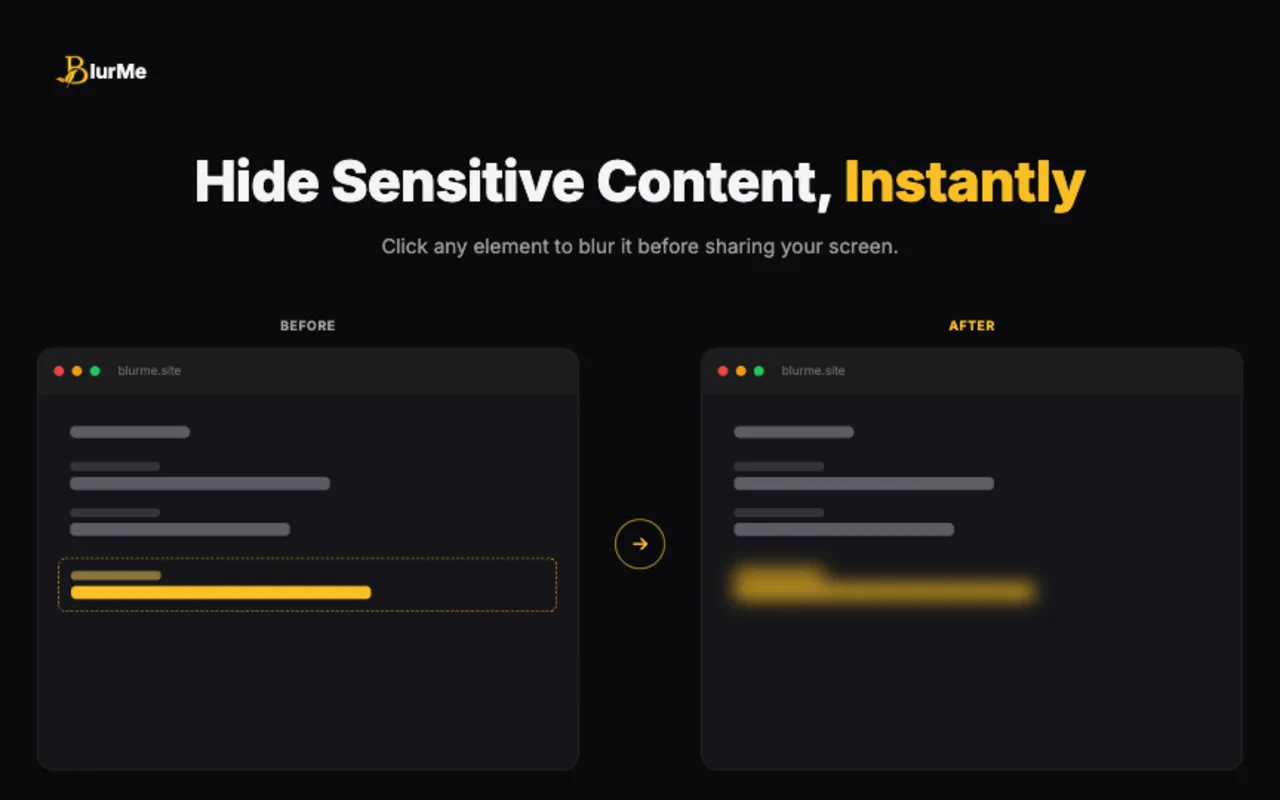
- Element Blur — blur a specific piece of text or UI element, like a customer name or a price field.
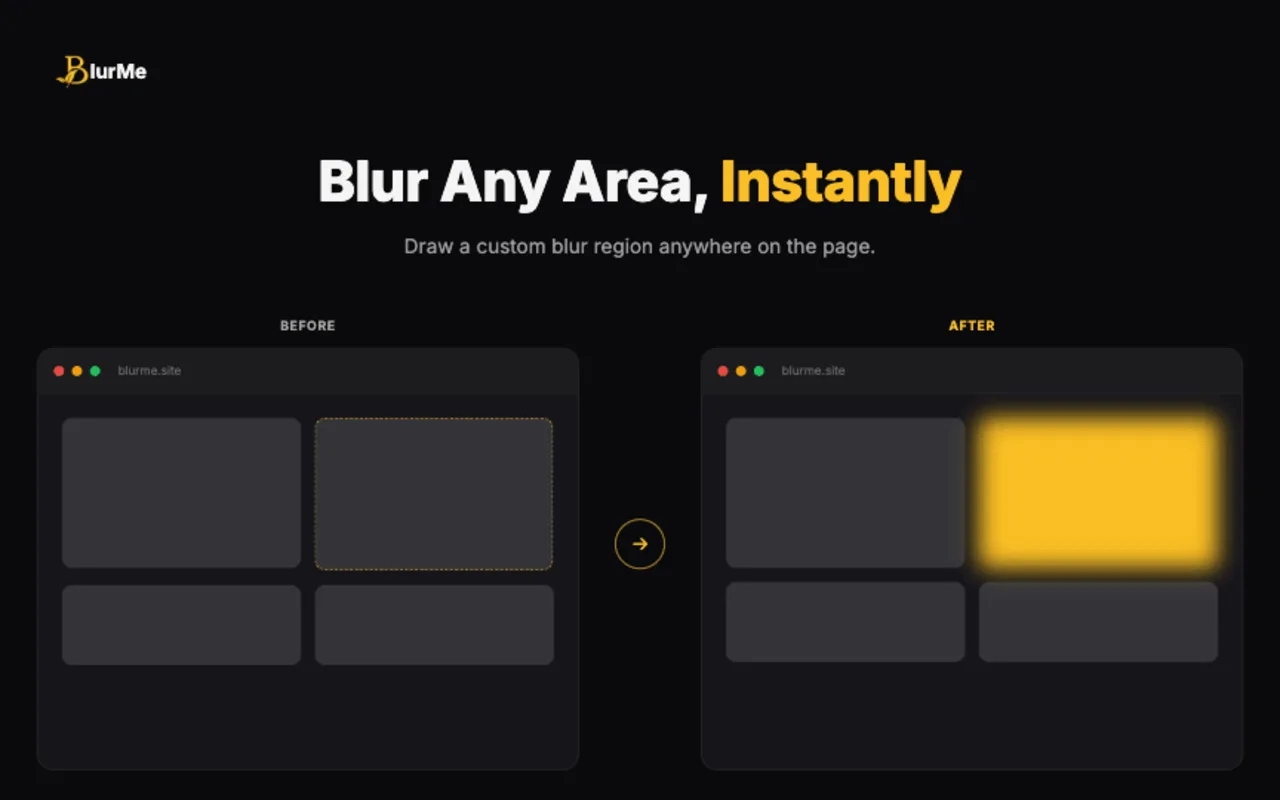
- Area Blur — draw a box over any region of the screen and blur everything inside it.
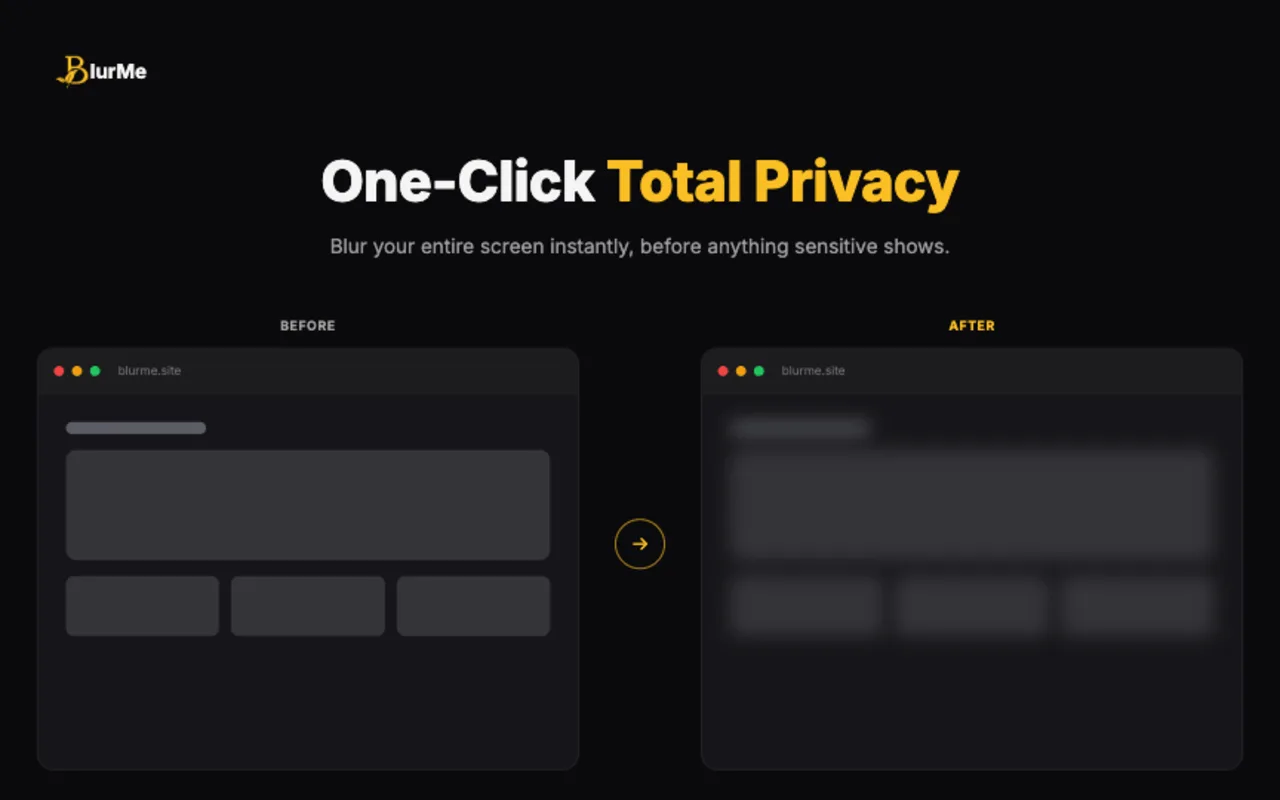
- Full Screen Blur — blur the entire screen instantly, useful for sudden interruptions.
- Tab Privacy — mask browser tab titles and favicons so tab names don't leak project or client information (see hide browser tabs during meetings).
Blurs persist across refreshes and can be toggled with keyboard shortcuts, so nothing has to be redone mid-call.
What Should Your Pre-Share Checklist Include?
A short scan before every call still matters, even with real-time blurring running. The seven-item version — close unrelated tabs, mute chat notifications, check the ChatGPT sidebar, blur dashboard numbers, turn off WhatsApp Web previews, check for open password managers, and do a final full-screen scan — is the same checklist BlurMe's founder runs before every client call (see screen sharing privacy checklist before client demos for the downloadable version).
Treat the checklist as the first pass and BlurMe as the safety net for what the checklist misses.
Frequently Asked Questions
Does BlurMe upload anything to the cloud?
No. All blurring happens locally in the browser — nothing displayed or blurred is ever uploaded.
Do I need an account to use BlurMe?
No account is required. It installs as a free Chrome extension and works immediately.
Will blurring slow down my screen share or call quality?
No. Blurring is applied locally to what's rendered on screen before it's shared, so it doesn't add processing load to the video call itself.
What's the difference between Area Blur and Full Screen Blur?
Area Blur covers a specific region you draw a box around — useful for one recurring element like a chat panel. Full Screen Blur hides everything instantly, which is better for sudden interruptions like an unexpected notification.
Can I still see what's blurred on my own screen?
Yes. BlurMe supports hover-to-reveal, so you can still read blurred content yourself while viewers only see the blur.
Conclusion
Most screen-share leaks aren't caused by carelessness — they're caused by timing, and manual prep alone can't cover every gap. Real-time blurring closes that gap without adding steps to your workflow: no re-recording, no account, no data leaving your device. Run the screen sharing privacy checklist before client demos before your next call, and add BlurMe as the layer that catches what the checklist misses.
Ready to protect your next screen share? Try BlurMe.
Sources
- CISA, Guidance for Securing Video Conferencing, https://www.cisa.gov/sites/default/files/publications/CISA_Guidance_for_Securing_Video_Conferencing_S508C.pdf
- Google Chrome Help, Install and manage extensions, https://support.google.com/chrome/answer/2664769?hl=en