How to Hide Browser Tabs During Meetings
Tab titles and favicons stay visible during any screen share. Here are 3 ways to hide them — from manual habits to a one-click fix that masks tabs automatically.
2026-07-13
How to Hide Browser Tabs During Meetings
A tab titled "Acme Corp — Renewal Draft" is visible the instant you share your screen, whether or not you ever click on it. Tab titles and favicons render independently of page content, and most screen-share tools default to sharing the full browser window, tab bar included. This guide covers three ways to hide them — from manual habits up to a one-click fix — so a project name never ends up in someone else's recording again.
Key Takeaways
- Tab titles and favicons are visible during a full-window share regardless of which tab is active.
- Manual options (closing tabs, renaming them, cropping the shared window) all work, but each has a real limit.
- Selective window/app sharing hides the tab bar entirely, but only if your call platform supports it and you remember to use it.
- Tab Privacy masks titles and favicons automatically, in one click, without closing anything.
Why Do Browser Tabs Need Their Own Privacy Step?
Tab titles and favicons are a passive leak — visible without you clicking, opening, or interacting with anything (see hide browser tabs during meetings for the full breakdown of why this happens). Most pre-call privacy checklists focus on active content like chat windows and dashboards, and skip the tab bar sitting quietly above everything else. The reason tab titles get missed so often isn't that people don't care — it's that "hiding tabs" and "hiding page content" feel like the same task, so people only do one of them. They close the risky document, then share a browser with eleven other tab titles still fully readable above it.
Option 1: Close or Rename Tabs Manually
The simplest fix is closing anything with a sensitive name before you share, or renaming tabs to something neutral if your browser supports custom titles via an extension. This works, but it doesn't scale: most people run a dozen or more tabs during a workday, and manually auditing each one before every call is easy to skip under time pressure.
Option 2: Use Selective Window or App Sharing
Most video call platforms let you share a single application window instead of your full screen, which keeps the browser's tab bar out of the shared view entirely. This is a strong second layer, but it depends on two things going right every time: your call platform needs to support app-level sharing, and you need to remember to select it instead of defaulting to "share entire screen." A rushed call start is exactly when that default gets skipped. In practice, selective sharing is the option most people intend to use and then forget under pressure — the "share entire screen" button is usually the first one in the list, and clicking it is faster than picking the right window when a call is already running late.
Option 3: Mask Tab Titles Automatically
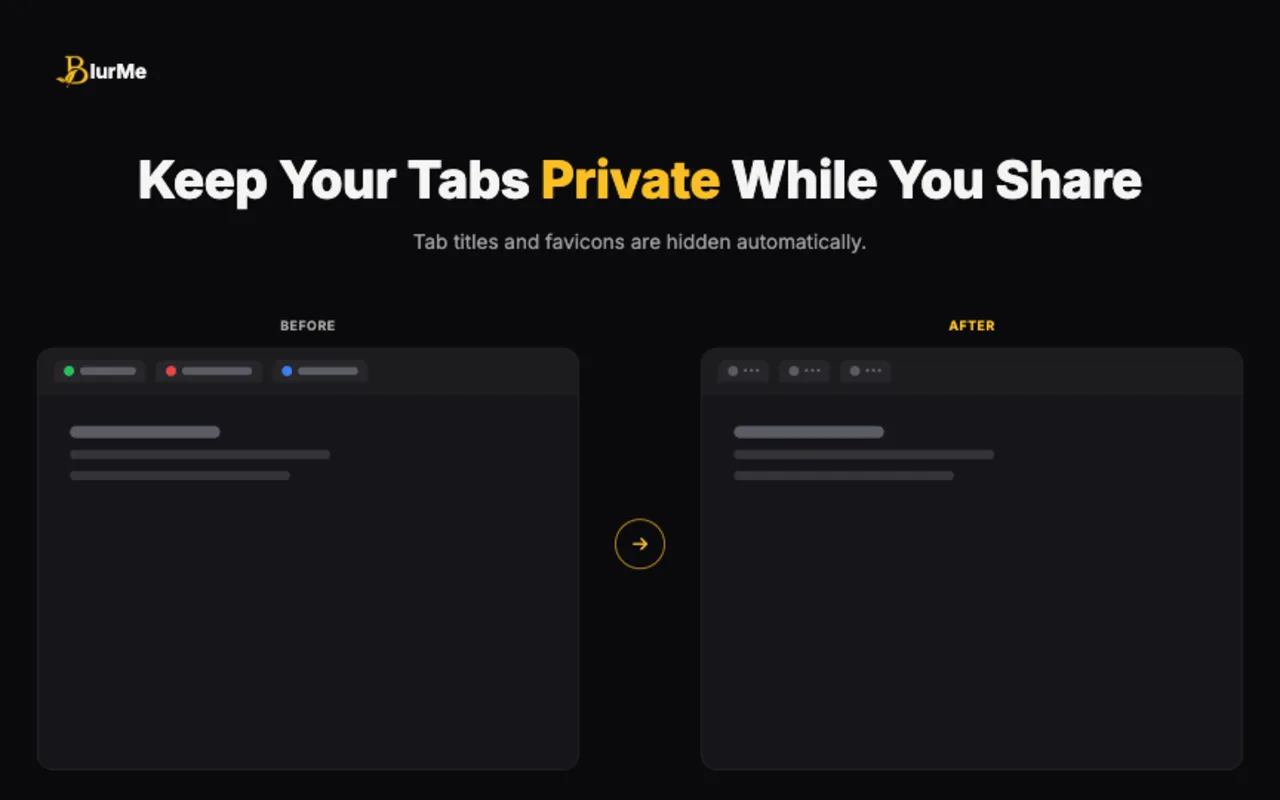
Tab Privacy masks tab titles and favicons directly in the browser, replacing them with generic placeholders — no closing tabs, no renaming, no dependency on which sharing mode your call platform defaults to. It runs locally, needs no account, and toggles with a keyboard shortcut before a call starts.
How to turn it on:
- Install BlurMe from the Chrome Web Store (free, no account required).
- Click the BlurMe icon in your toolbar.
- Select Tab Privacy.
- Tab titles and favicons across all open tabs mask instantly — the tabs stay open and usable, only the label changes.
- Toggle it off with the same click when you're done, or leave it running by default if you screen share often.
Because masking happens in the browser itself, it works the same way regardless of which call platform or sharing mode you're using — it doesn't depend on remembering to pick "share window" over "share screen." Combine it with Element Blur or Area Blur for on-page content (see how to blur sensitive information while screen sharing) for full coverage.
Which Option Should You Actually Use?
Closing tabs and selective sharing are useful habits, but each depends on remembering to do it correctly every single time — and habits fail exactly when you're rushed. Automated masking removes that dependency. The practical answer is to run Tab Privacy by default and treat the manual options as backup, not the other way around.
Frequently Asked Questions
Does hiding tab titles close or affect my tabs?
No. Tab Privacy only changes the visible title and favicon — every tab stays open, loaded, and fully usable.
Does this work on every browser?
BlurMe is built for Chrome and Chromium-based browsers (Edge, Brave, and similar) installed via the Chrome Web Store.
Will viewers notice something is being hidden?
Masked tabs show a generic label rather than an obvious placeholder or warning icon, so it reads as ordinary browser behavior rather than a visible overlay.
Does this replace selective window sharing?
No — they solve different problems. Selective sharing limits what's shared at the platform level; Tab Privacy masks what's visible even when the full browser window is shared. Using both is the most complete setup.
Conclusion
Manual habits — closing tabs, renaming them, choosing selective sharing — all work until the moment you're rushed, and most calls start rushed. Tab Privacy removes that dependency with a one-click, always-on fix. Pair it with how to blur sensitive information while screen sharing and the screen sharing privacy checklist before client demos for complete coverage before your next call.
Ready to protect your next screen share? Try BlurMe.
Sources
- CISA, Guidance for Securing Video Conferencing, https://www.cisa.gov/sites/default/files/publications/CISA_Guidance_for_Securing_Video_Conferencing_S508C.pdf
- Google Chrome Help, Install and manage extensions, https://support.google.com/chrome/answer/2664769?hl=en