How to Blur WhatsApp Web Chats Before Screen Sharing
WhatsApp Web message previews, contact names, and media render by default. Here's how to blur them before screen sharing without logging out.
2026-07-13
How to Blur WhatsApp Web Chats Before Screen Sharing
WhatsApp Web renders message previews, contact names, and media thumbnails the moment the page loads — none of it requires you to open a single chat first. If you're recording a tutorial, a demo, or a screen-share video with WhatsApp Web open in another tab, that content is visible for as long as the tab is, whether or not it's the tab you're actually narrating.
Key Takeaways
- WhatsApp Web shows message previews and contact names by default, without requiring any chat to be opened.
- Logging out or closing the tab works but removes access to WhatsApp entirely during the recording.
- WhatsApp Privacy Mode blurs messages, names, and media previews while keeping the tab fully usable.
- Recordings preserve this exposure indefinitely, unlike a live call that ends when the call does.
What Does WhatsApp Web Expose by Default?
Message previews, contact names, group names, and media thumbnails all render in the chat list without requiring you to click into a conversation — a passive information leak similar to browser tab titles (see hide browser tabs during meetings). Anyone watching a recording with WhatsApp Web visible in the background can read names and message snippets without you ever switching to that tab. Most privacy advice for recordings focuses on the primary application being demonstrated. WhatsApp Web is almost always a background tab in these situations — which is exactly why it gets missed. Nobody reviews the tabs they're not talking about.
Does Logging Out Solve This?
Logging out of WhatsApp Web removes the exposure completely, but it also removes your ability to use WhatsApp during the recording — not a real option if you need to reference a message or stay reachable while recording. It's a valid choice only when WhatsApp genuinely isn't needed for the session.
How Does WhatsApp Privacy Mode Work?
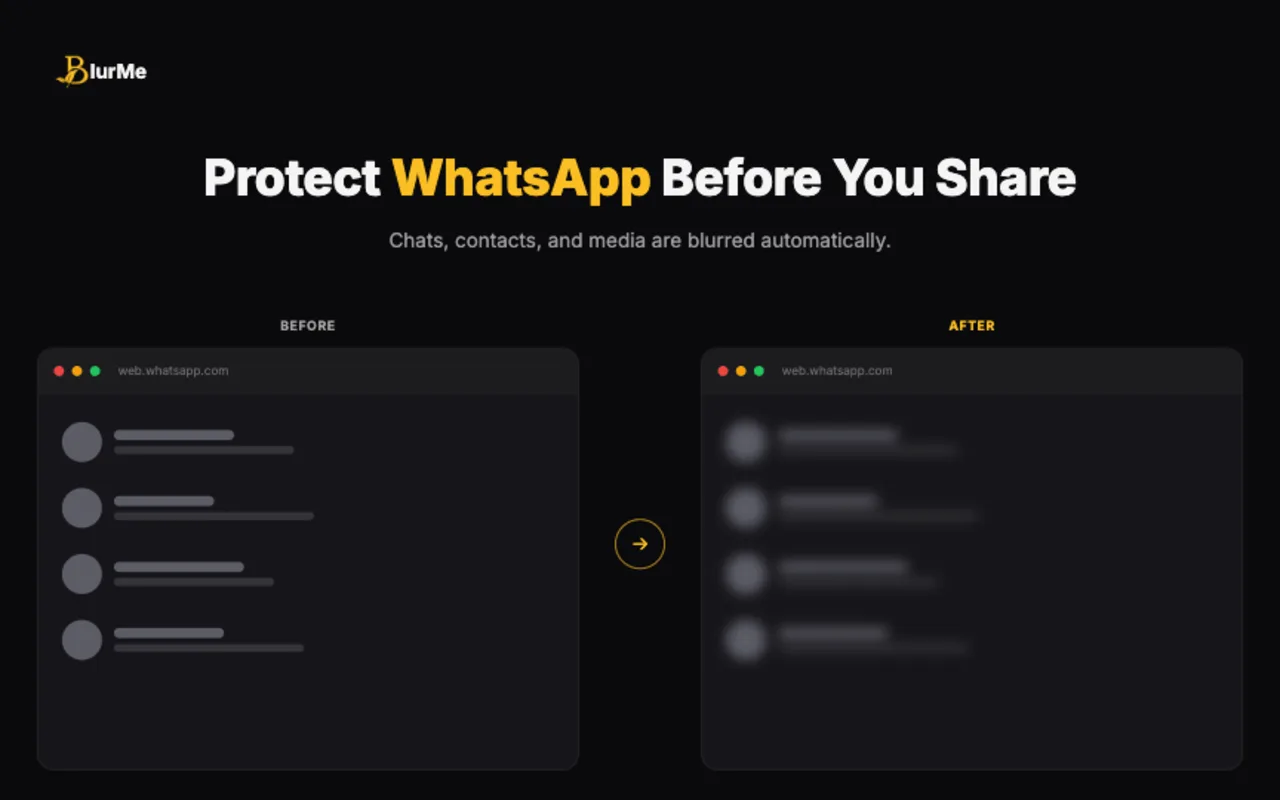
WhatsApp Privacy Mode blurs message content, contact names, group names, and media previews directly in the browser, while WhatsApp Web stays fully logged in and usable underneath. Recordings can include the tab without exposing what's in it.
Setup steps:
- Install BlurMe from the Chrome Web Store (free, no account required).
- Open web.whatsapp.com and click the BlurMe icon.
- Select WhatsApp Privacy Mode.
- Messages, names, and media previews mask instantly with an amber blur.
- Start recording — the blur persists across refreshes, so a page reload mid-recording doesn't undo it. The recurring request in early feedback wasn't "hide WhatsApp entirely" — it was "let me keep using it without anyone else reading over my shoulder." That distinction is why WhatsApp Privacy Mode blurs content rather than closing the tab.
Frequently Asked Questions
Does this affect my ability to send or receive messages while recording?
No — WhatsApp Privacy Mode only changes what's visually displayed. Sending and receiving messages works normally underneath the blur.
Does it cover voice and video call notifications too?
It covers message previews, names, and media thumbnails in the chat interface. A separate incoming call notification from the operating system, if enabled, isn't covered by a browser extension.
Is this different from WhatsApp's own "Chat Lock" feature?
Yes — WhatsApp's Chat Lock requires a passcode to open a specific chat. WhatsApp Privacy Mode blurs what's visible across the whole interface for anyone watching your screen, regardless of which chats are locked.
Does hover-to-reveal work here like it does for ChatGPT Mode?
Yes — hover over a blurred row to check it privately, and it re-hides when you move away, the same interaction as hide ChatGPT sidebar history during screen recording.
Conclusion
Logging out works but costs you access; blurring in place doesn't. WhatsApp Privacy Mode covers the passive exposure that WhatsApp Web creates by default, without requiring you to give up the tab during a recording. Pair it with hide browser tabs during meetings for full browser coverage.
Ready to protect your next screen share? Try BlurMe.
Sources
- WhatsApp Help Center, About linked devices, https://faq.whatsapp.com/378279804439436
- WhatsApp Help Center, About message history on linked devices, https://faq.whatsapp.com/653480766448040