How to Hide ChatGPT Sidebar History During Screen Recording
Your ChatGPT sidebar is a running log of everything you've asked, visible the moment you share your screen. Here's how to hide it in one click.
2026-07-13
How to Hide ChatGPT Sidebar History During Screen Recording
ChatGPT usage at work has grown fast enough that most people now demo it live at least occasionally: 28% of employed adults say they use ChatGPT for work, up from just 8% two years earlier (Pew Research Center, Americans' Views on AI Chatbots, Smart Devices and AI's Impact, published 2026-06-17, retrieved 2026-07-12, https://www.pewresearch.org/internet/2026/06/17/americans-and-ai-2026-chatbots-smart-devices-and-views-on-impact/). Every one of those sessions carries a sidebar full of old conversation titles — and that sidebar is visible the instant you share your screen, whether you're presenting a workflow, recording a tutorial, or demoing a feature built on top of the API.
Key Takeaways
- 28% of employed adults now use ChatGPT for work, up from 8% two years ago (Pew Research Center, 2026).
- The sidebar shows old conversation titles by default, independent of whatever you're actively discussing.
- ChatGPT Mode blurs the sidebar automatically and supports hover-to-reveal, so you don't lose access to your own history.
- Setup takes under a minute and blurs persist across refreshes.
Why Does the ChatGPT Sidebar Need Its Own Privacy Step?
The sidebar renders a full list of past conversation titles the moment the page loads, independent of whichever chat you're actively viewing — a client's name in a project brief, a personal question, an unfinished idea, all visible at a glance to anyone watching your screen. Most people prepare the actual conversation they're about to demo — clearing test messages, double-checking the prompt — and never think to check the sidebar next to it, because it feels like background UI rather than content. It's exactly as visible as the main chat window.
What Are Your Options for Hiding It?
Two manual options exist: opening a new browser profile with no chat history, or deleting old conversations before screen sharing. Both work, but a clean profile means losing access to your actual saved chats mid-demo, and deleting conversations is destructive — you lose them for good just to make one recording safer.
How Do You Set Up ChatGPT Mode?
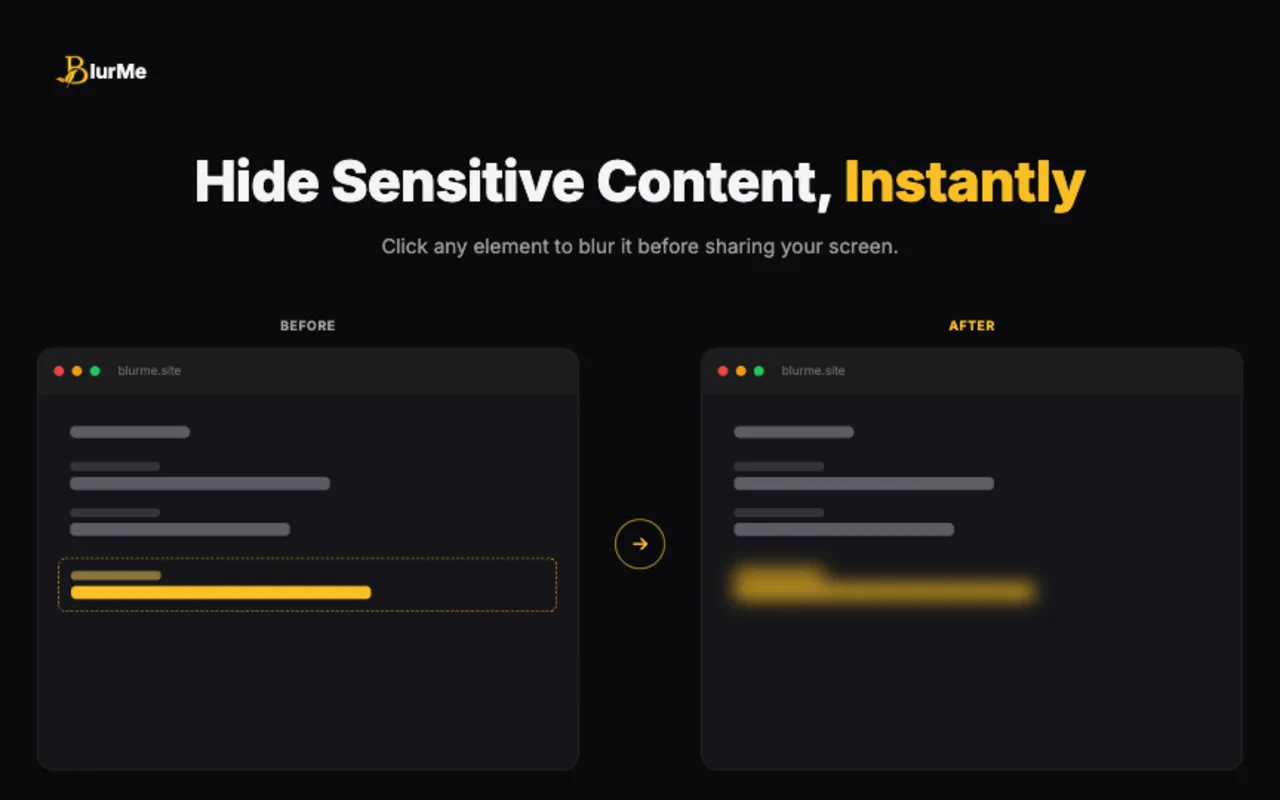
ChatGPT Mode blurs the sidebar automatically, without deleting anything or switching profiles, and supports hover-to-reveal so you can still find an old conversation privately if you need it mid-call.
Setup steps:
- Install BlurMe from the Chrome Web Store (free, no account required).
- Open chatgpt.com and click the BlurMe icon in your toolbar.
- Select ChatGPT Mode.
- The sidebar's conversation titles mask instantly with an amber blur.
- Hover over any row to reveal it privately; move your cursor away and it re-hides.
- Start your demo, recording, or call — the sidebar stays masked the entire time. The hover-to-reveal detail came directly from early testing: an always-blurred sidebar is safe but useless if you actually need to find a saved conversation mid-demo. Letting the presenter check privately, without ever exposing it to the viewer, solved that without weakening the privacy.
Does It Hold Up Across Refreshes and Multiple Sessions?
Yes — ChatGPT Mode persists across page refreshes and new sessions once enabled, so it doesn't need to be reapplied every time you reopen the tab (see how to blur sensitive information while screen sharing for how persistence works across all BlurMe features). This matters for longer recordings and multi-part tutorials where the tab might reload between segments.
Frequently Asked Questions
Does ChatGPT Mode work on the official chatgpt.com site only?
Yes, it's built to target ChatGPT's actual interface. For other AI tools rendered in the browser, Element Blur or Area Blur can cover similar sidebar or history panels manually.
Does hiding the sidebar slow down ChatGPT's interface?
No — the blur is a visual overlay applied by the browser extension; it doesn't interact with ChatGPT's own rendering or response speed.
Can I still send new messages while the sidebar is blurred?
Yes. Only the sidebar's past conversation titles are affected — the active chat window and message input work normally.
Is this useful for anything besides recording tutorials?
Yes — the same setup applies to live client demos, sales calls, and any screen share where you might open ChatGPT.
Conclusion
A growing share of work now runs through ChatGPT, and the sidebar's old conversation titles are exactly the kind of passive leak that's easy to miss while prepping the actual demo. ChatGPT Mode closes that gap in under a minute, without deleting history or switching profiles. Pair it with hide browser tabs during meetings for full browser coverage before your next AI demo.
Ready to protect your next screen share? Try BlurMe.
Sources
- Pew Research Center, Americans' Views on AI Chatbots, Smart Devices and AI's Impact, published 2026-06-17, retrieved 2026-07-12, https://www.pewresearch.org/internet/2026/06/17/americans-and-ai-2026-chatbots-smart-devices-and-views-on-impact/
- OpenAI Help Center, How do I search my chat history in ChatGPT?, https://help.openai.com/en/articles/10056348-how-do-i-search-my-chat-history-in-chatgpt
- OpenAI Help Center, How to Delete and Archive Chats in ChatGPT, https://help.openai.com/en/articles/8809935-how-to-delete-and-archive-chats-in-chatgpt