Screen Sharing Privacy Checklist Before Client Demos
A free 7-item screen-sharing privacy checklist for client demos and calls — what to check before you hit Share Screen, and what BlurMe automates for you.
2026-07-13
Screen Sharing Privacy Checklist Before Client Demos
The ten seconds before hitting "Share Screen" rarely gets the attention it deserves. This checklist is the exact routine to run before a client meeting, demo, or recorded walkthrough — plus a downloadable version and a note on which steps BlurMe automates for you.
Key Takeaways
- A written checklist turns screen privacy into a repeatable routine instead of a memory test.
- A seven-item checklist — tabs, chat, ChatGPT sidebar, dashboards, WhatsApp Web, password managers, final scan — covers the most common accidental leaks.
- Manual checklists work until something unplanned interrupts the routine; automation covers the gap.
- BlurMe automates checklist items 3 through 6 in one click, without an account or upload.
Why Does a Screen-Sharing Checklist Matter Before Client Calls?
Pre-call privacy scans get skipped when meetings start quickly, someone joins late, or the presenter is already focused on the demo. A written checklist turns a habit that depends on remembering into a routine that doesn't. This is the same seven-step list run before every client call while building BlurMe: close unrelated tabs, mute chat notifications, check the ChatGPT sidebar, blur dashboard numbers, turn off WhatsApp Web previews, check for open password managers, and do a final full-screen scan. None of the steps are complicated. The value is in running all seven, every time, instead of remembering three or four under time pressure.
What's on the 7-Item Screen Sharing Checklist?
The full checklist, in order, before every screen share:
- Close unrelated browser tabs — especially anything with a client, project, or internal codename in the title.
- Mute chat and Slack notifications — a single popup can reveal a name or message mid-presentation.
- Check your ChatGPT sidebar — prompts and chat history are easy to forget are still open.
- Blur dashboard numbers — revenue, usage, or customer data visible in an open dashboard tab.
- Turn off WhatsApp Web previews — message and contact previews render by default.
- Check for open password managers — a browser extension panel left open can expose saved logins.
- Do a final full-screen scan — ten seconds, before you click Share.
Why Do Manual Checklists Still Fail Sometimes?
Even a well-memorized checklist fails when something interrupts the routine — a late join, a rushed start, a notification that lands after the scan is already done. The failure point usually isn't the checklist itself — it's the moment after the checklist, when a Slack message lands right as the call starts. A written list covers preparation. It doesn't cover what happens the moment sharing begins, which is the gap real-time tools are meant to close.
Which Checklist Items Can Be Automated?
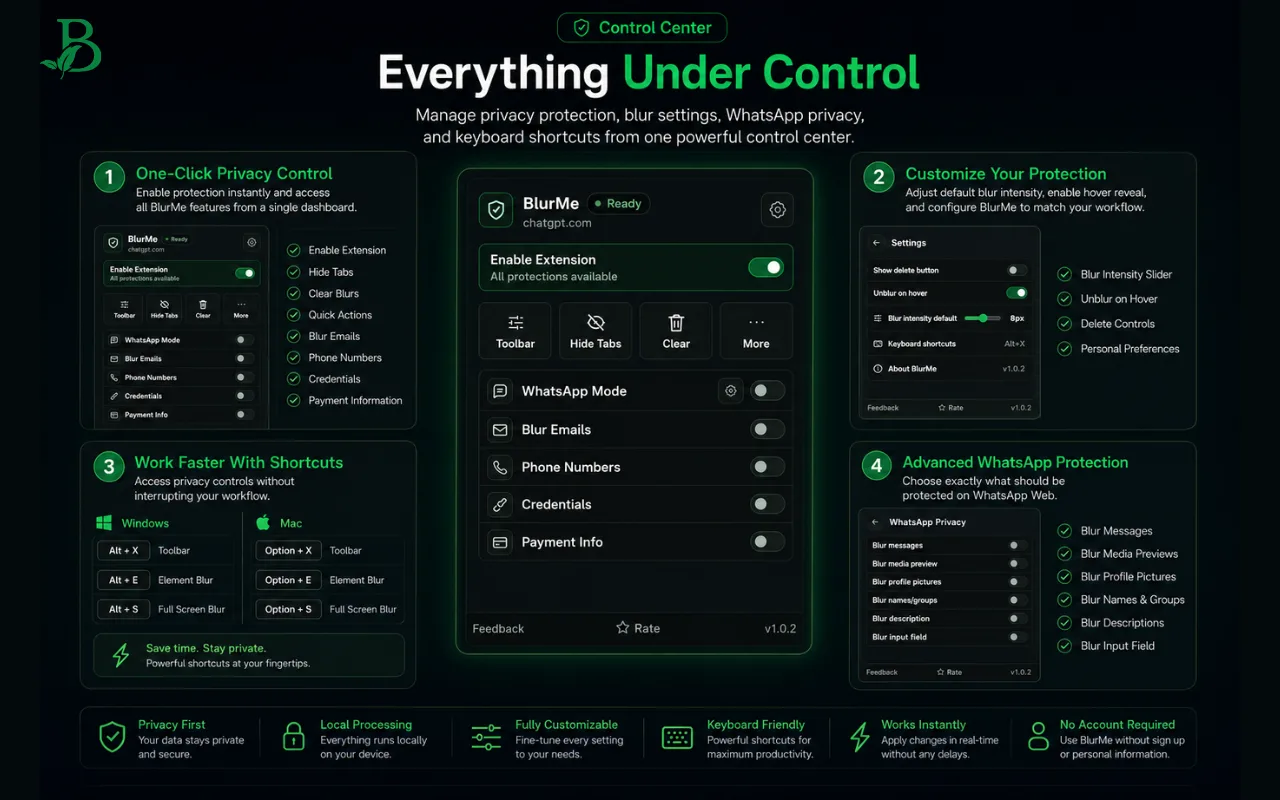
Checklist items 3 through 6 — the ChatGPT sidebar, dashboard numbers, WhatsApp Web previews, and password manager panels — are exactly the categories BlurMe's Element Blur, Area Blur, and WhatsApp Privacy Mode are built to handle in one click, without closing anything or re-recording a call. Tab titles (item 1) are covered separately by Tab Privacy (see hide browser tabs during meetings).
That leaves chat notifications (item 2) and the final scan (item 7) as habits worth keeping regardless — a two-item routine is far easier to run consistently than a seven-item one. For the full breakdown of how real-time blurring works, see how to blur sensitive information while screen sharing. Running this checklist manually for months before building BlurMe made the pattern obvious: the same four items (ChatGPT sidebar, dashboards, WhatsApp, password managers) were the ones most often skipped under time pressure, while the two habitual ones (mute notifications, final scan) rarely got missed. That's the actual reason BlurMe automates four items and leaves two as habits.
Frequently Asked Questions
Is there a downloadable version of this checklist?
Yes — the PDF version is available by signing up below, and it's the same seven items covered in this post.
Do I need to run all seven steps every single call?
The habit-based items (mute notifications, final scan) take seconds and are worth keeping every time. The other four are largely automated once BlurMe is installed and set up once.
Does BlurMe replace the checklist entirely?
Not fully — it automates the content-hiding steps (dashboards, chat sidebars, WhatsApp previews, tab titles), but habits like muting notifications and doing a final scan are still worth keeping.
Is this checklist useful outside of client demos?
Yes — it applies to any screen share, including internal demos, recorded tutorials, livestreams, and support calls.
Conclusion
A written checklist turns screen-sharing privacy from something you have to remember into something you can run on autopilot — but it still depends on catching everything before the call starts. BlurMe automates the four steps most often skipped under time pressure, so the two that remain (muting notifications, a final scan) are the only habits left to keep. Grab the checklist below, and try BlurMe to automate the rest.
Want the checklist version? Get the checklist.
Sources
- CISA, Guidance for Securing Video Conferencing, https://www.cisa.gov/sites/default/files/publications/CISA_Guidance_for_Securing_Video_Conferencing_S508C.pdf
- OpenAI Help Center, How do I search my chat history in ChatGPT?, https://help.openai.com/en/articles/10056348-how-do-i-search-my-chat-history-in-chatgpt
- WhatsApp Help Center, About linked devices, https://faq.whatsapp.com/378279804439436
- Google Chrome Help, Install and manage extensions, https://support.google.com/chrome/answer/2664769?hl=en